Google Forms Certificate Not Sending? 10 Causes and Fixes (2026)
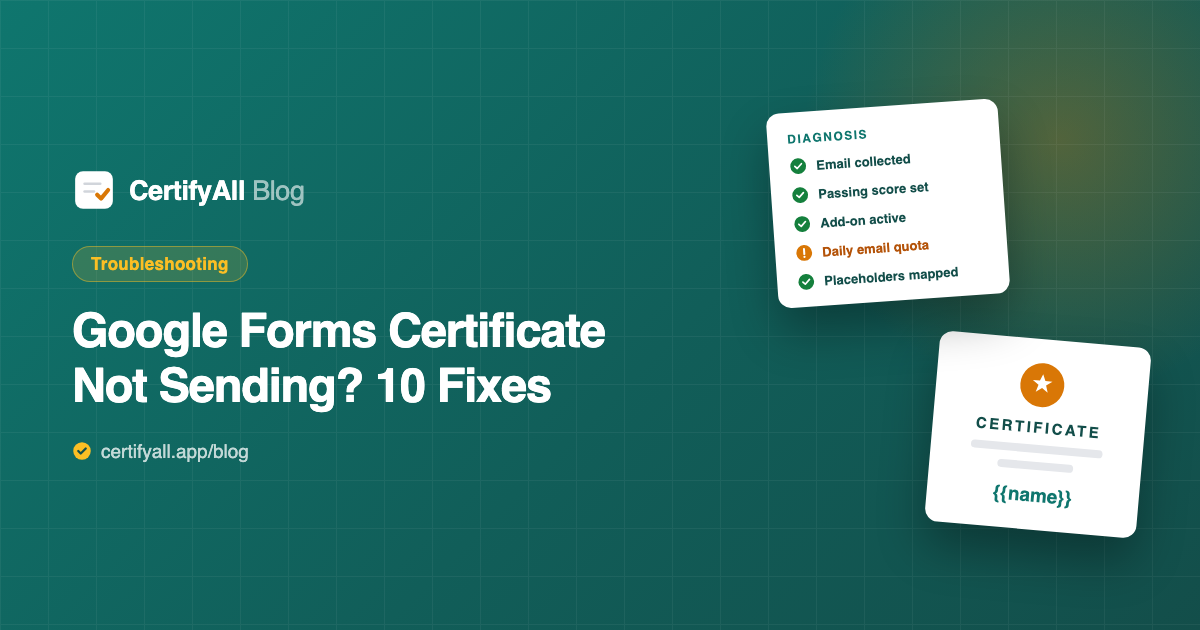
When a certificate isn't sent after a Google Form submission, the cause is almost always one of five things: the form isn't collecting an email address, the respondent scored below the passing score, the sending account's daily email quota is used up (100 recipients a day on a free Gmail account, 1,500 on Google Workspace), the add-on is paused, or the free plan's monthly limit has been reached. Google Forms has no built-in certificate feature, so certificates always come from an add-on or Apps Script — and every fix below is a setting you can check in a few minutes. This guide uses CertifyAll's behavior for the specifics; the email-quota and email-collection fixes apply to any Apps Script-based certificate tool.
The 60-second diagnosis: check Google Drive first
CertifyAll processes every submission in a fixed order: it checks that it's active and under the plan limit, checks the quiz score, finds the respondent's email, checks the daily email quota, generates the PDF and saves a copy to a "CertifyAll Certificates" folder in the form owner's Google Drive, and only then sends the email. That order makes the Drive folder the fastest diagnostic tool you have:
- The respondent's PDF is in the Drive folder → generation worked. The problem is delivery: spam filtering, a mistyped address, or the email itself failing. Jump to fixes 8–10.
- There is no PDF → the certificate was never generated. The cause is a setup or limit issue. Start with fixes 1–6.
- The PDF exists but shows
{{name}}or a blank → a placeholder isn't mapped. See fix 7.
Also open the CertifyAll sidebar (the Add-ons puzzle-piece icon in the Google Forms editor → CertifyAll → Open). The dashboard shows whether the add-on is Active or Paused and how many certificates you've issued this month (for example "20 / 20" on the free plan).
Symptom → cause → fix
| Symptom | Most likely cause | Fix |
|---|---|---|
| Nobody receives anything | No email address collected | Turn on Collect email addresses (fix 1) |
| Some respondents get a "Your Results" email instead | Score below the passing score | Working as designed; review the threshold (fix 2) |
| Everyone gets a certificate, even failing students | Quiz mode turned on after setup | Re-save settings with a passing score (fix 3) |
| Nothing happens on new submissions | Add-on paused or deactivated | Click Resume (fix 4) |
| Worked earlier this month, then stopped | Free monthly limit (20) reached | Wait for the new month or upgrade (fix 5) |
| Stops after a burst of submissions in one day | Daily Apps Script email quota used up | Wait 24 hours or use a Workspace account (fix 6) |
Certificate shows {{name}} literally | Placeholder not mapped or renamed question | Re-map in Edit Settings (fix 7) |
| PDF in Drive, respondent sees no email | Spam, Promotions, or a typo in the address | Check spam; forward the PDF (fix 8) |
| Old responses never got certificates | Submitted before activation, or on a copy of the form | Ask for a new submission (fix 9) |
| Stopped after you reorganized Drive | Template trashed or deleted | Restore it or choose a new template (fix 10) |
Fixes when no certificate was generated
1. The form isn't collecting an email address
A certificate needs somewhere to go. CertifyAll uses the address Google Forms collects; if the form doesn't collect one, it falls back to the first answer that looks like a valid email address. If neither exists, no certificate is generated. Fix: in the Google Forms editor, open Settings → Responses → Collect email addresses and choose Verified (respondents sign in with a Google account) or Responder input (respondents type their address, no Google account needed). Alternatively, add a required short-answer question asking for an email address.
2. The respondent scored below the passing score
On a quiz form, CertifyAll compares each respondent's percentage — rounded to the nearest whole percent — with your minimum passing score (the default is 70%). Respondents below it don't get a certificate; they get an encouraging email titled "Your Results — [form title]" showing their score and the score needed, and inviting them to try again. That email doesn't count toward your monthly certificate limit. If scores look lower than they should: questions you grade manually, like paragraph answers that carry points, haven't been graded at the moment of submission, so they earn zero when the pass/fail decision is made. Use auto-graded questions — multiple choice, checkboxes, dropdown, or short answer with an answer key — for anything that counts toward the certificate. The quiz certificate guide covers quiz setup in detail.
3. Everyone gets a certificate, including students who failed
This is the reverse problem, and it has one cause: the passing score is only saved if the form was already a quiz when you set up CertifyAll. If you turned on Settings → Make this a quiz afterwards, no passing score was stored and every submission is certified. Fix: open the CertifyAll sidebar, click Edit Settings, set the Minimum passing score (%) field that now appears, and click Activate CertifyAll to save.
4. CertifyAll is paused or deactivated
The dashboard's status badge reads Paused if someone clicked Pause, and choosing Deactivate from the add-on menu removes the form-submit trigger entirely. Either way, new submissions are ignored. Fix: open the sidebar and click Resume — this also re-creates the trigger if it was removed.
5. The free plan's monthly limit has been reached
CertifyAll's free plan issues 20 certificates per calendar month, counted for the Google account that set it up. Once the 20th certificate is sent, later submissions that month are not certified — they're not queued for later, either. The counter resets at the start of each month. Fix: check the "Certificates this month" bar in the sidebar; for larger groups, Pro ($5.99/month) removes the limit and the watermark.
6. The daily email quota is used up
Every add-on that sends email through Google Apps Script is bound by Google's daily quota: 100 email recipients per day for consumer (gmail.com) accounts and 1,500 per day for Google Workspace accounts (Apps Script quotas). The quota is per user and shared by every script and add-on on that account, and it resets 24 hours after the first request. CertifyAll checks the remaining quota before generating each certificate and skips the submission if none is left. "Your Results" emails to respondents who didn't pass also use quota. Fix: wait for the quota to reset and ask affected respondents to resubmit; for events with more than 100 certificates in a day, set CertifyAll up from a Google Workspace account.
Fixes when the certificate looks wrong
7. A placeholder like {{name}} isn't replaced
CertifyAll fills built-in placeholders automatically — {{email}}, {{date}}, {{form_title}}, {{timestamp}}, and on quizzes {{score}}, {{total}}, and {{percentage}}. Every other placeholder, including {{name}}, must be mapped to a form question in the setup's Map Fields step. A placeholder appears literally on the certificate when:
- It was never mapped — the dropdown next to it was left on "Select field…".
- The spelling or capitalization differs — matching is case-sensitive, so
{{Name}}and{{name}}are different placeholders. Copy them exactly. - You renamed the mapped question — mappings follow the question's title, so a renamed question no longer matches.
- You added the placeholder after setup — new placeholders in the Slides template need mapping too.
Fix for all four: close and reopen the CertifyAll sidebar (it re-reads the template's placeholders each time it opens), click Edit Settings, map each placeholder to the right question, and click Activate CertifyAll to save. The Slides template guide explains how placeholders work.
Fixes when the PDF exists but no email arrived
8. The email went to spam, Promotions, or a mistyped address
Certificate emails are sent from the Google account that set up CertifyAll, with the sender name CertifyAll and, by default, the subject "Your Certificate — [form title]". Ask the respondent to search their mailbox, including Spam and the Promotions tab, for that subject. If the form uses Responder input, check the response for a typo in the address — the PDF's file name includes the respondent's name (or email), so you can match it in Drive. Fix: forward the PDF from Drive to the correct address; for future emails, a personal subject and body (both editable in setup and supporting placeholders) look less like bulk mail.
9. The response was submitted before activation, or on a copy of the form
CertifyAll runs on a form-submit trigger attached to one specific form. Responses submitted before you clicked Activate CertifyAll are never processed — there is no backfill — and a copy of the form doesn't carry the trigger, so it needs its own setup. Fix: set CertifyAll up on the exact form respondents are using, then ask anyone who submitted earlier to submit again.
10. The Slides template was trashed or deleted
Each certificate is made from a fresh copy of your Google Slides template, so the template has to stay in Drive. If it was moved to the trash or deleted, generation fails. Fix: restore it from Drive's trash, or open Edit Settings and choose a new template with the file picker. Edits to the template itself are safe — they simply apply to every certificate generated afterwards.
How to resend a certificate
CertifyAll generates certificates only when a new response arrives, so there's no "resend" button. Two reliable options:
- The PDF exists in Drive. Open the CertifyAll Certificates folder, find the file (named with the respondent's name or email and the date), and share or forward it.
- The PDF was never generated. Fix the cause above, then ask the respondent to submit the form again. If the form is limited to one response per person, turn that setting off temporarily so they can submit again.
Known limitations worth knowing
Being upfront about what the workflow doesn't do saves troubleshooting time later:
- No backfill. Only submissions received while CertifyAll is active get certificates.
- No queue at the limit. Submissions over the free monthly limit or the daily email quota are skipped, not delayed.
- One sending account. Emails, quota, and the Drive folder all belong to the Google account that activated CertifyAll on the form.
- Google's quota applies to everyone. Any certificate tool built on Apps Script email — not just CertifyAll — is capped at 100 or 1,500 recipients per day depending on the account type.
For a full comparison of how certificate tools handle these trade-offs, see Best Certificate Add-ons for Google Forms; for every method including manual and mail merge, the complete guide.
Frequently asked questions
Why is my Google Forms certificate not sending?
The most common causes are: the form isn't collecting an email address, the respondent scored below the passing score, the account's daily Apps Script email quota (100/day on Gmail, 1,500/day on Google Workspace) is used up, the add-on is paused, or the free plan's monthly limit was reached. Check whether a PDF was created in Drive first — that tells you whether generation or delivery failed.
Can Google Forms send certificates by itself?
No. Google Forms has no built-in certificate feature; it can only show a confirmation message and, for quizzes, release scores. Certificates are always sent by an add-on such as CertifyAll or by a custom Apps Script, so a missing certificate is a setup or quota issue in that tool.
How many certificate emails can I send per day from Google Forms?
Tools that send through Google Apps Script are capped at 100 email recipients per day on consumer (gmail.com) accounts and 1,500 per day on Google Workspace accounts. The quota is per user, shared by every script and add-on on that account, and resets 24 hours after the first request.
Why does my certificate still show {{name}} instead of the student's name?
The placeholder isn't mapped to a form question. In CertifyAll, {{name}} is a custom placeholder you map to your name question. It also breaks if the capitalization differs (matching is case-sensitive), if you renamed the mapped question, or if you added it after setup. Open Edit Settings and re-map it.
How do I resend a certificate to someone who didn't get it?
There's no resend button, because certificates are generated per new submission. If the PDF is in your "CertifyAll Certificates" Drive folder, forward it. If it was never generated, fix the cause and ask the respondent to submit the form again.
Why did everyone get a certificate even though some students failed?
The passing score is only saved if the form was already a quiz when you set up CertifyAll. If you turned on "Make this a quiz" afterwards, every submission is certified. Open CertifyAll, click Edit Settings, set the minimum passing score that now appears, and click Activate CertifyAll to save.